
How to: Light room edits
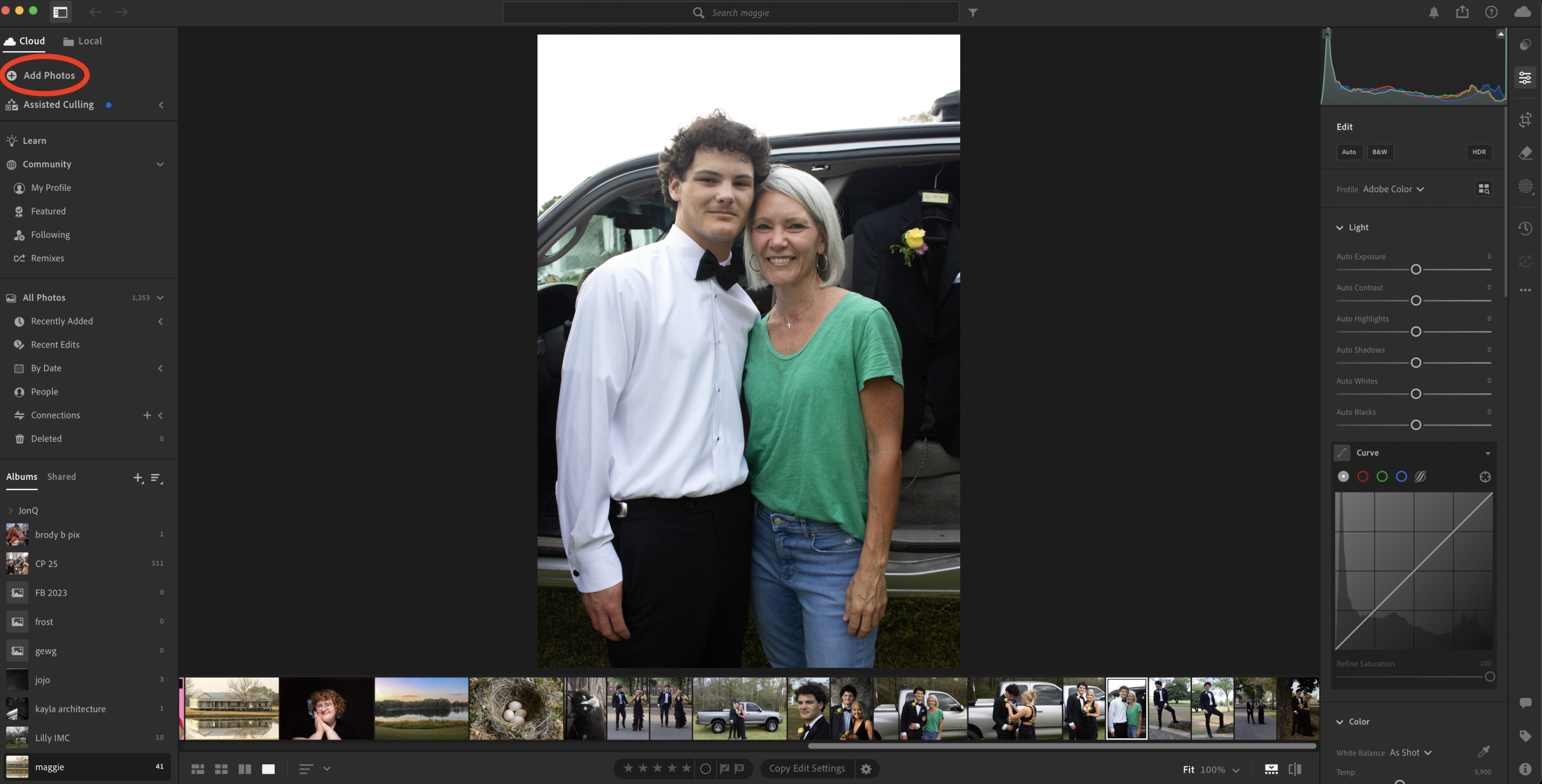
Upload the picture you want to edit into Lightroom. Open Lightroom, click ” Add Photos ” in the top left corner.
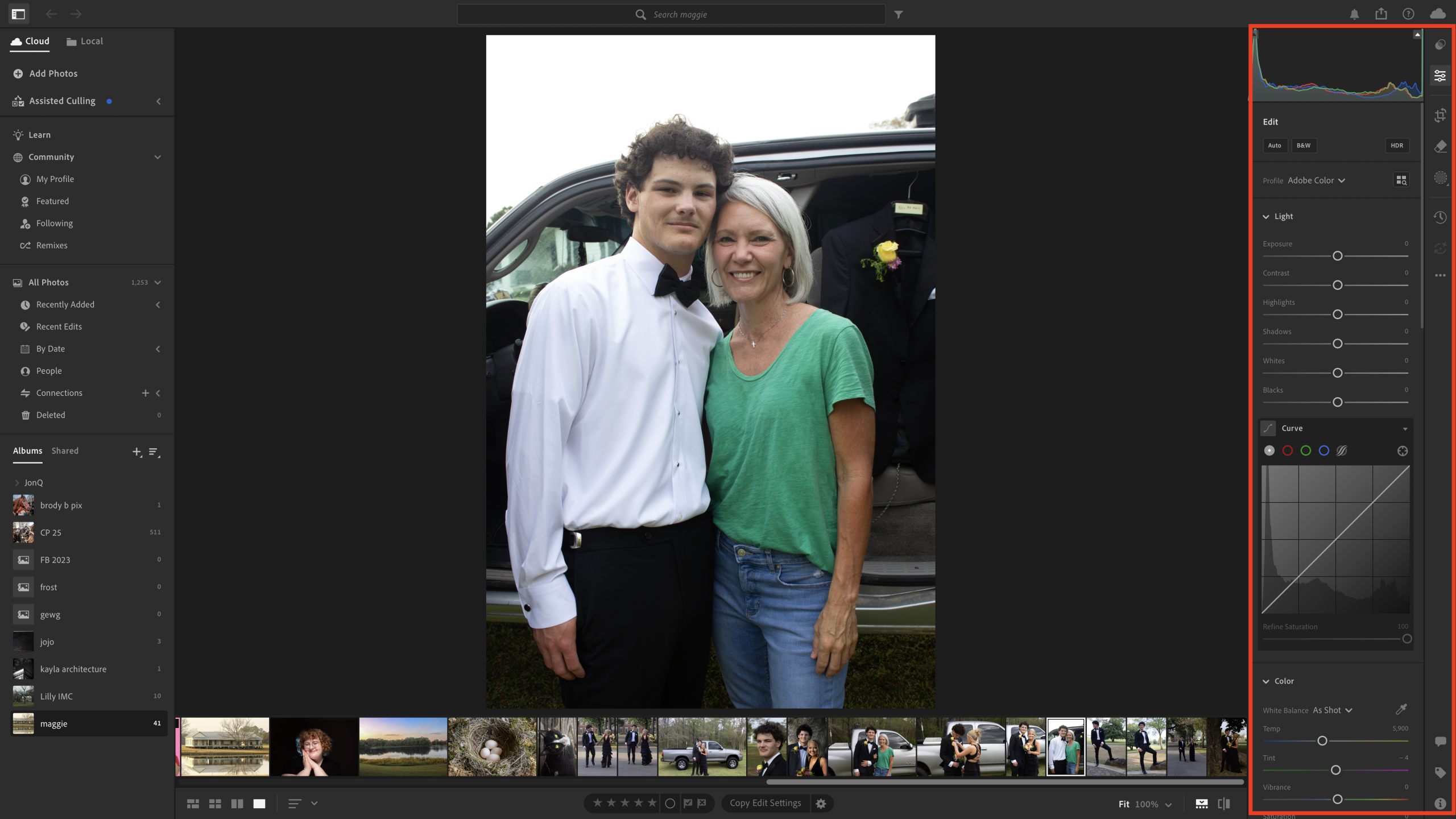
Once your image is uploaded into Lightroom, you can begin making edits. All the tools you will need to edit will be on the right side of your screen.
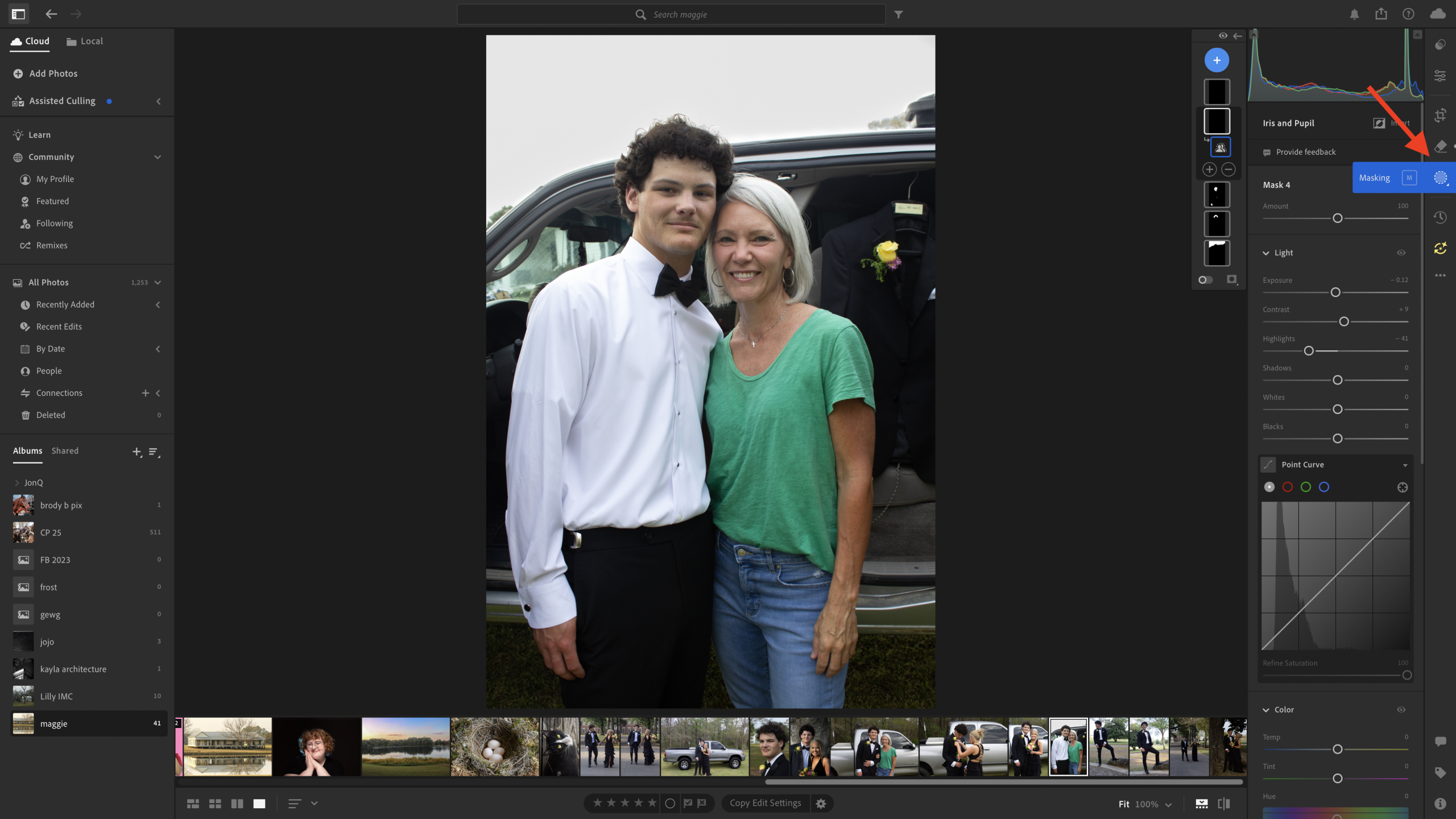
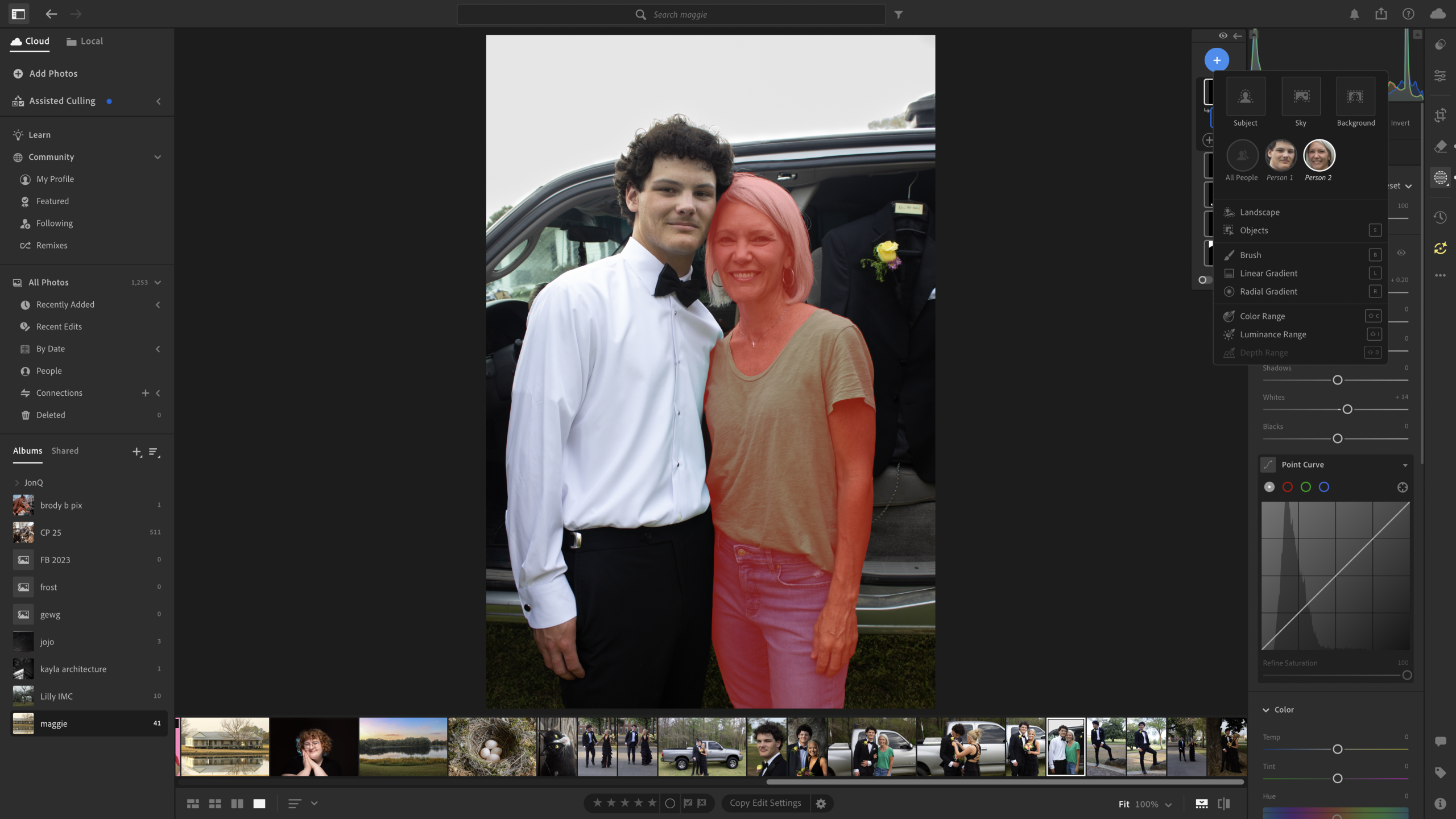
The masking tool allows you to select individual objects and people to edit. The selected object will become highlighted in red.
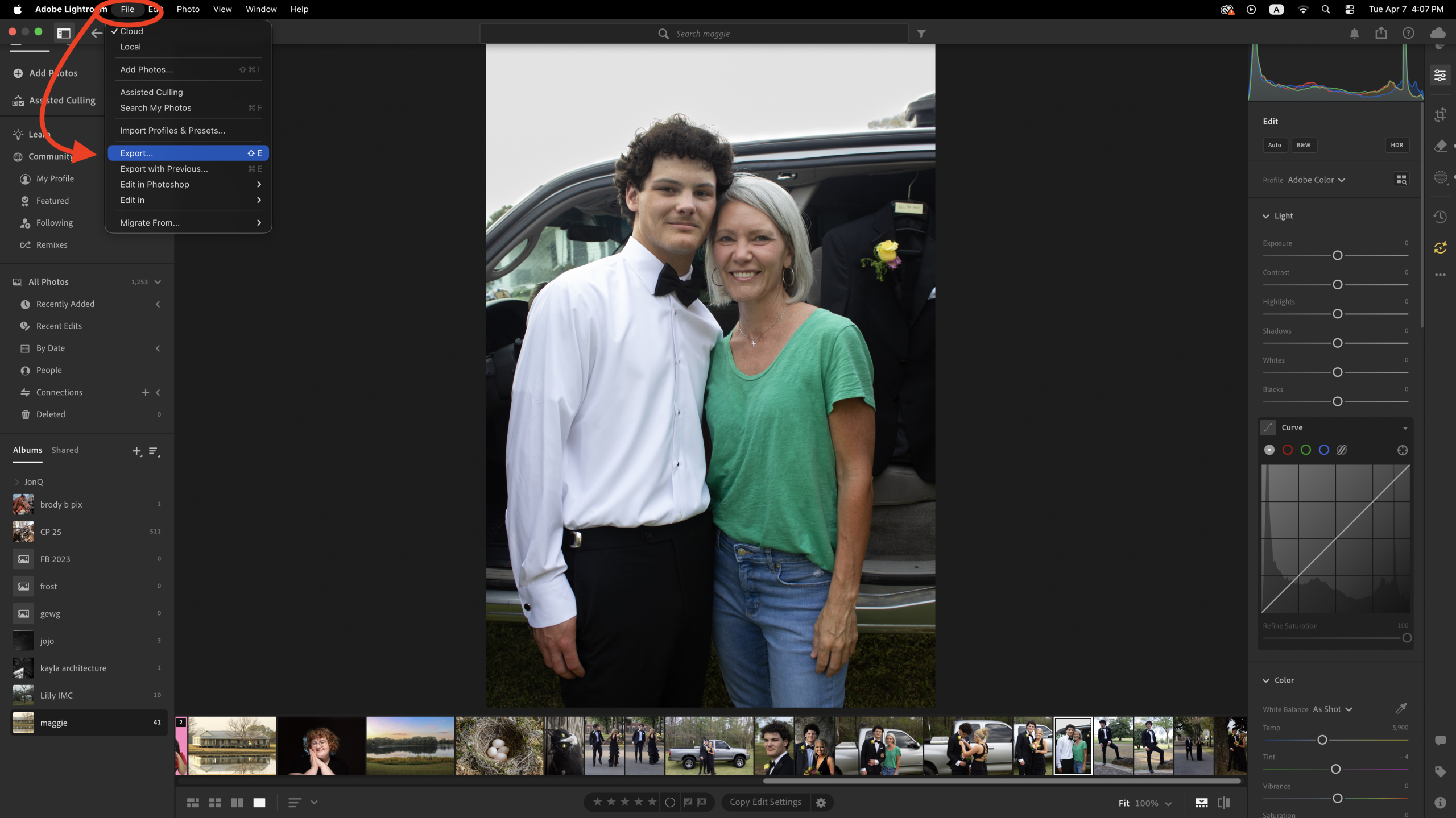
When you are happy with your edits, you can export your photo. Go to the very top left of your page and hover over file. A drop-down box will appear; click export in that box.
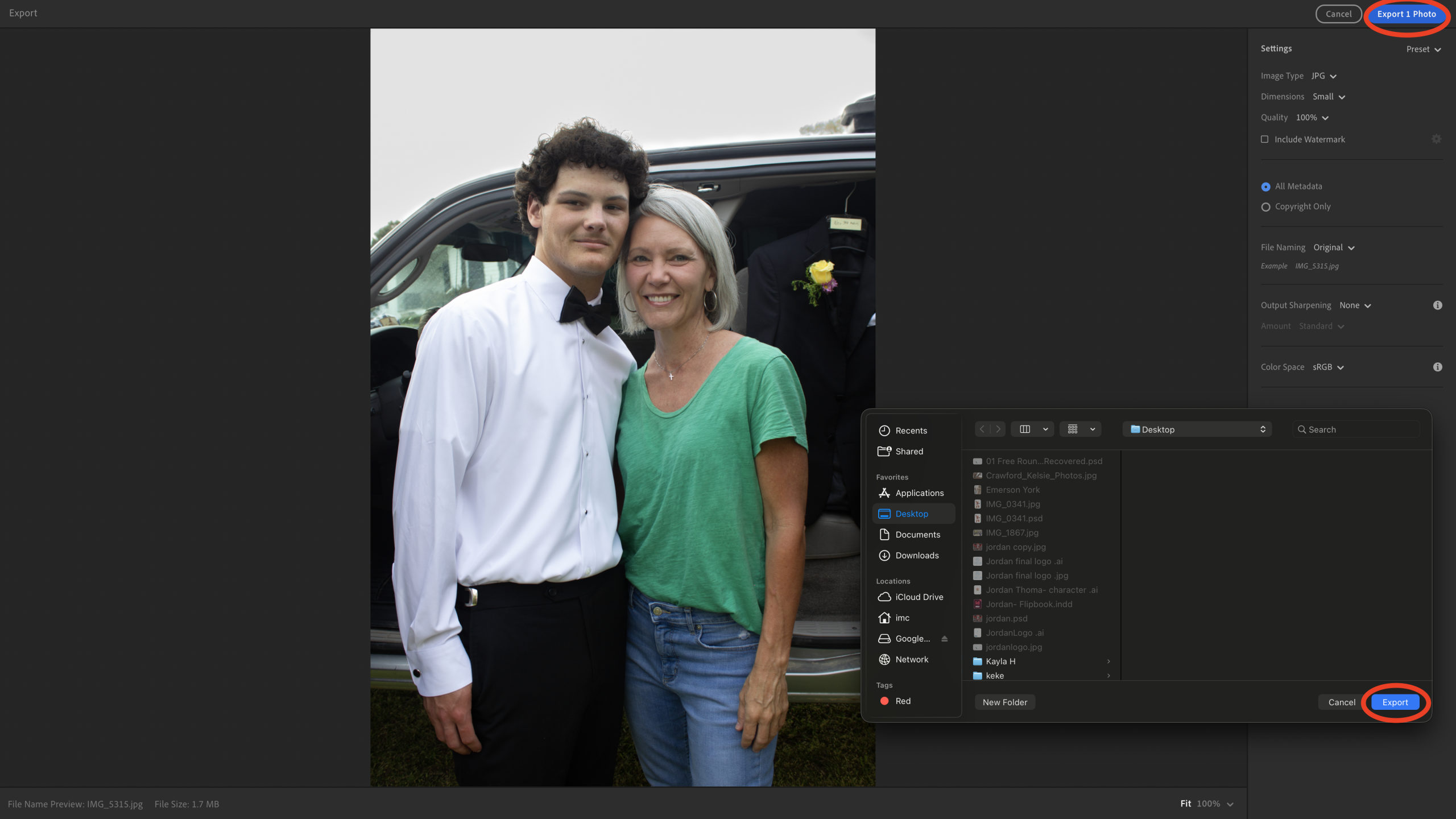
In the top right corner, click “Export 1 Photo.” A box will appear. Select where you want the image to go. Then, at the bottom right of that box, click “Export.” Your image will be saved to the location of your choice, and you can close Lightroom.
Before Lightroom edits
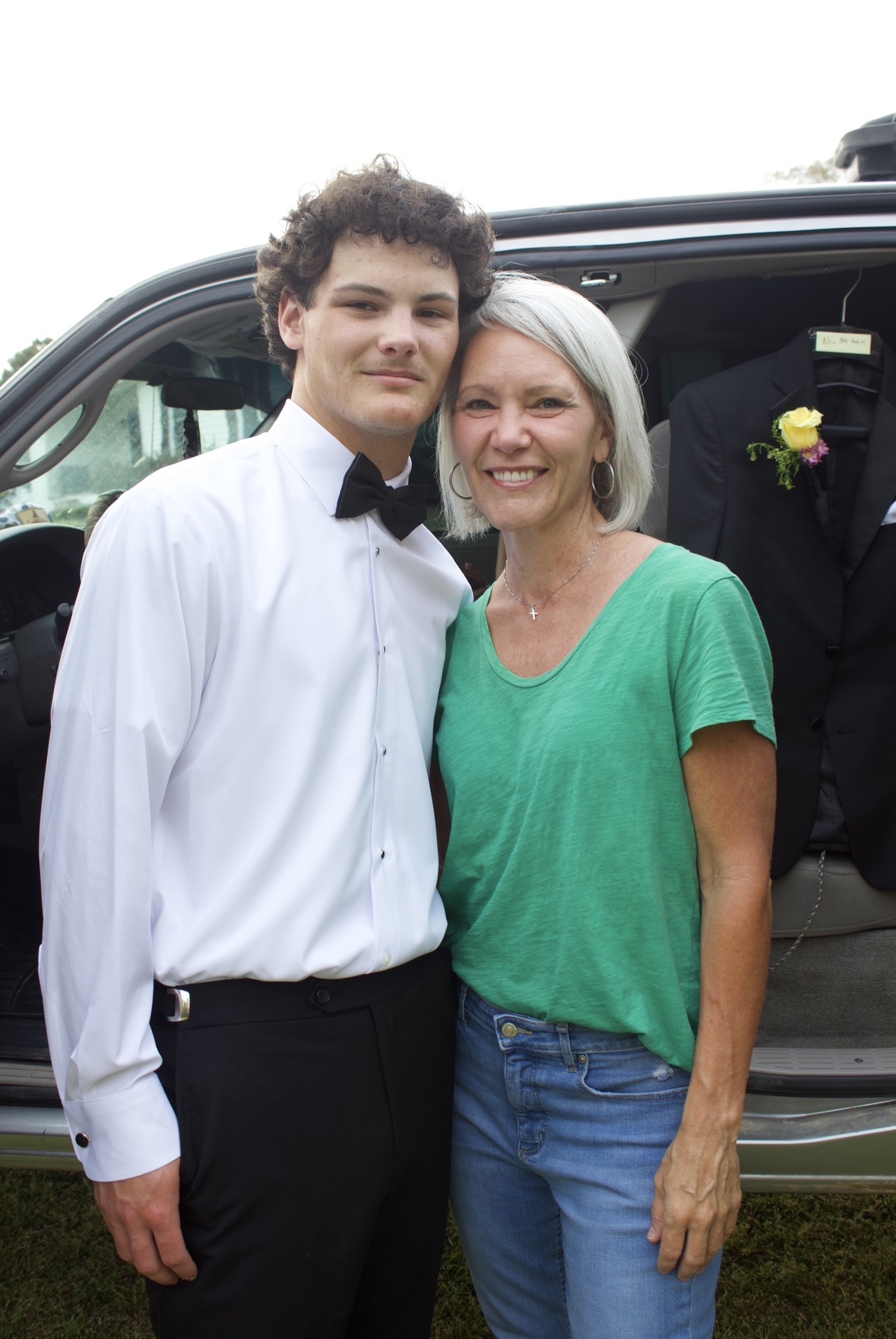
Before edits, you can see the image is overexposed. This caused some details to be lost. There are also some things inside the truck causing the image to look messy.
After Lightroom edits
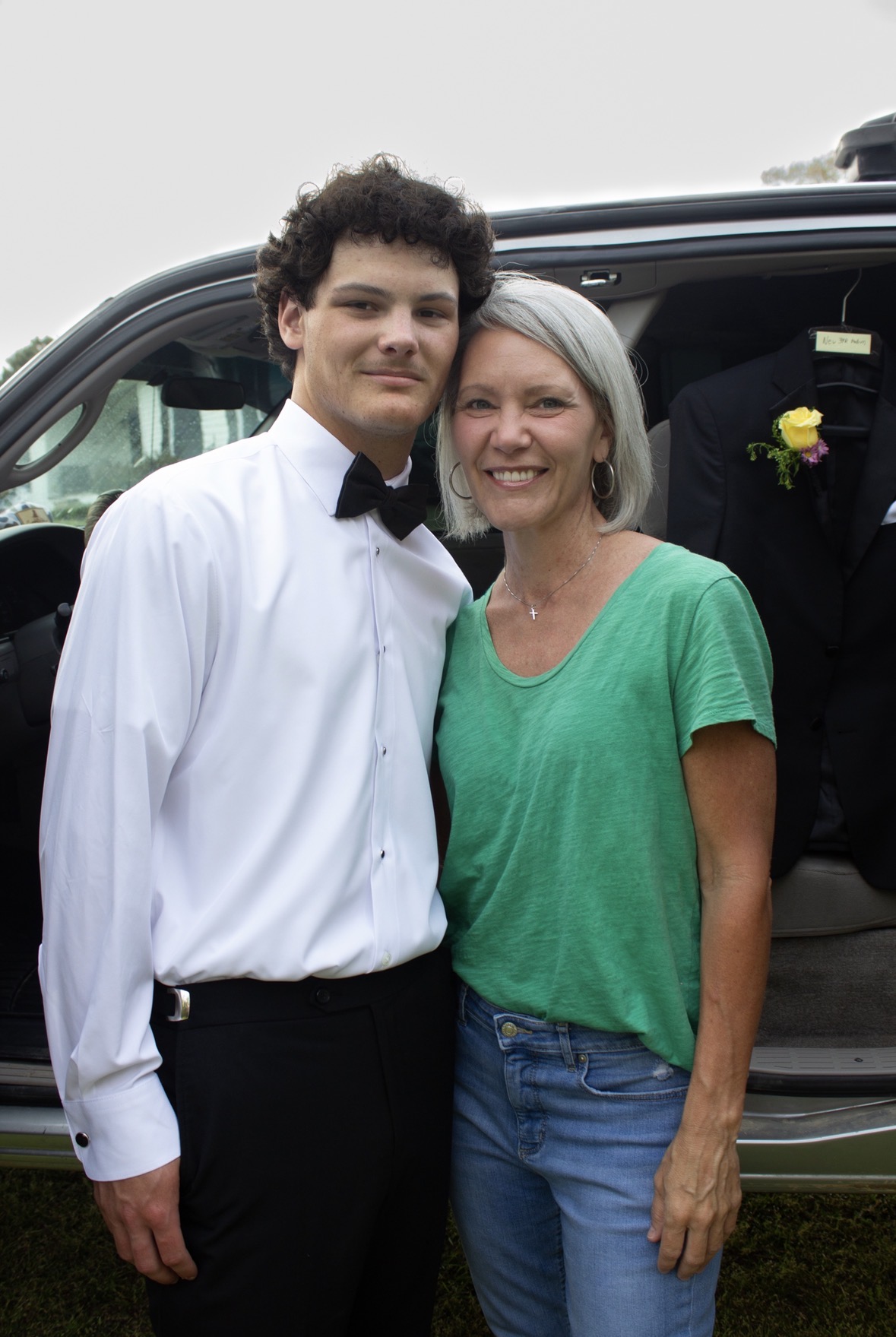
After editing, you can see that I lowered the background brightness, which makes the subjects pop more. I also removed some distractions inside the truck to create a cleaner image.